How to use Increment
Increment is a powerful productivity tool for automatically time-blocking your schedule. It learns how your life works, so it can build a schedule that helps you be as productive as possible.
Contents
Events, tasks and goals
Everything in Increment is an event, a task, or a goal.
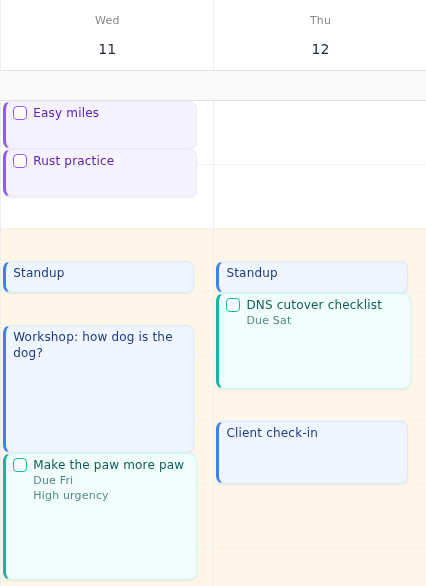
- Events are fixed blocks in your calendar, such as meetings or appointments. These are never moved.
- Tasks are flexible jobs and to-dos. You estimate the duration of a task, and Increment will find and allocate the necessary time in your schedule.
- Goals are aspirations you want to dedicate time to long-term, such as reading every day or going to the gym twice a week. Increment helps you find the time for goals by looking for gaps in your day.
When project colour mode is off, events are shown in blue, tasks in teal and goals in violet.
Connecting calendars
You can import events from your other calendars. Imported events are treated as fixed and won't be touched by Increment's scheduling engine. To import from a new source, expand the sidebar and click Calendars.
Option A — import an .ics file
An .ics file is a static calendar snapshot. You can import the events in the file by selecting Import a file and then choose the file….
Repeated events, exceptions and cancellations are all understood. You can safely re-import a file without creating duplicates.
Option B — subscribe by link
Almost all calendar providers provide a live subscription link. This is the main way to import events from your other calendars into Increment. The link is live meaning new events added will be automatically visbile in Increment.
See our blog posts to figure out where to get your link to subscribe to Google, iCloud, Outlook calendars or a university timetable.
Once you have the link, subscribe to that calendar by pasting the link under Subscribe by link → Subscribe.
Option C — connect Outlook
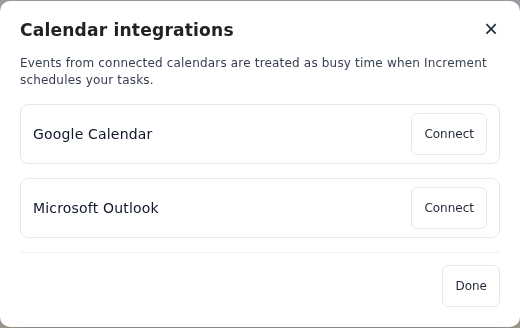
You can import events from your Outlook calendar directly by choosing Microsoft Outlook → Connect, and signing in with Microsoft.
Each calendar your import has two settings: Show on my calendar and Counts as busy. Show on my calendar toggles whether events imported from that calendar are visible in Increment. Counts as busy lets you control whether events from that calendar should be considered 'busy-time' for the purpose of the Increment scheduling engine.
Connected and subscribed calendars are read-only. Increment reads them to know when you are busy but doesn't write anything back.
Add your first task
Press the + New button and select Task.
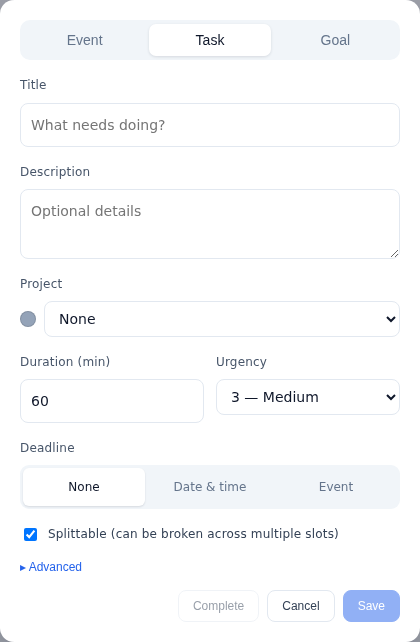
Fill in the Duration: how long you expect the task to take. This is the most important field as it tells Increment how much time to allocate to this task on your calendar.
In general, the more information you can give about a task, the more helpfully Increment can schedule it.
Set a deadline to have your task complete on time and to give it priority over others.Set a task to Repeat when it something that most be done regularly, so that you don't have to recreate the same task again. Urgency runs 1 (Lowest) to 5 (Highest) to break ties, and putting a task within a particular Project lets you keep track of similar work and set scheduling rules per project.
When you need more control
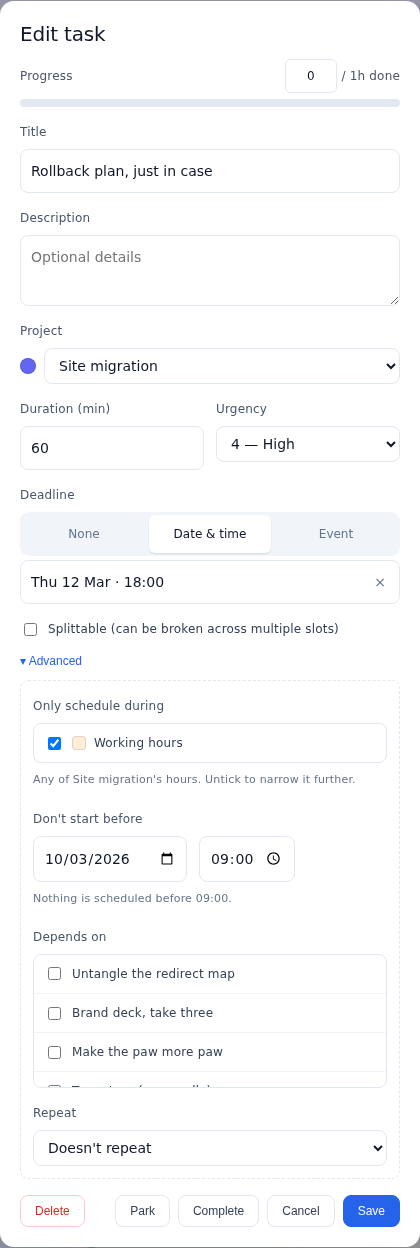
Expand Scheduling to expose more fine-grained scheduling options.
The Reschedule button
The Reschedule button sits in the top-right part of the screen, beside + New. Press it to force run the Increment scheduling engine: your tasks and goals drop into the gaps between events.
If you don't like the schedule Increment gives you, you can drag a block to move it. The rest of the week re-plans around the move, so you can see how the time works out. Once a block has been dragged it will automatically be pinned so that the next reschedule doesn't move it. Double-click a block to pin or unpin it in place.
Scheduling hours
Increment lets you define specific stretches of time when work may be scheduled. By default Increment sets:
- Sleeping hours — 22:00 to 07:00.
- Working hours — 09:00 to 17:00, Monday to Friday.
- Personal hours — the mornings, evenings and weekends around working and sleeping.
Which you can edit, add to or delete to suit your life.
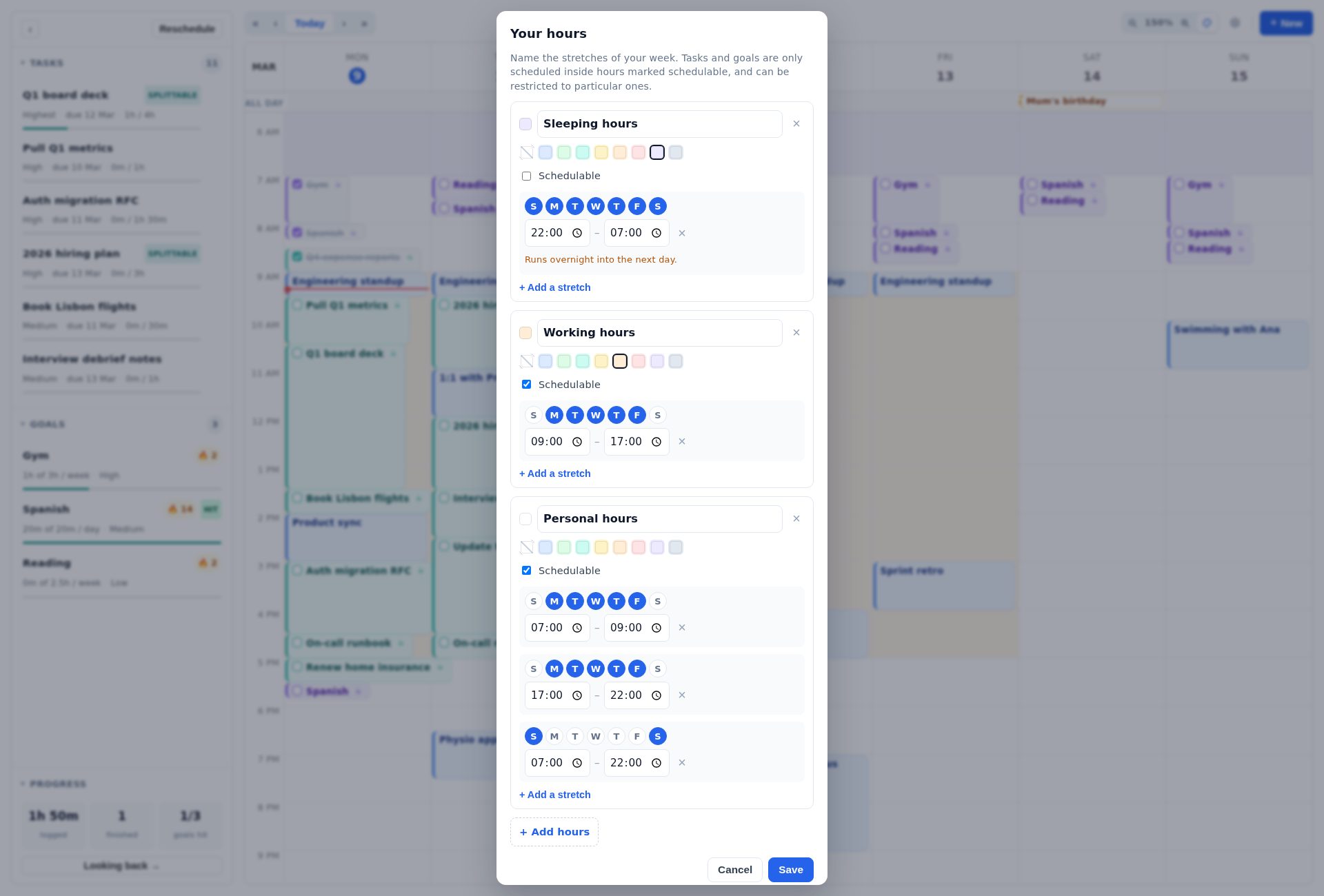
These bands of time become useful when you want to schedule work. Any task or goal has an Hours setting under Scheduling: this helps you restrict a particular job to only be scheduled within certain times of the day, such as keeping work tasks within the working day.
Projects
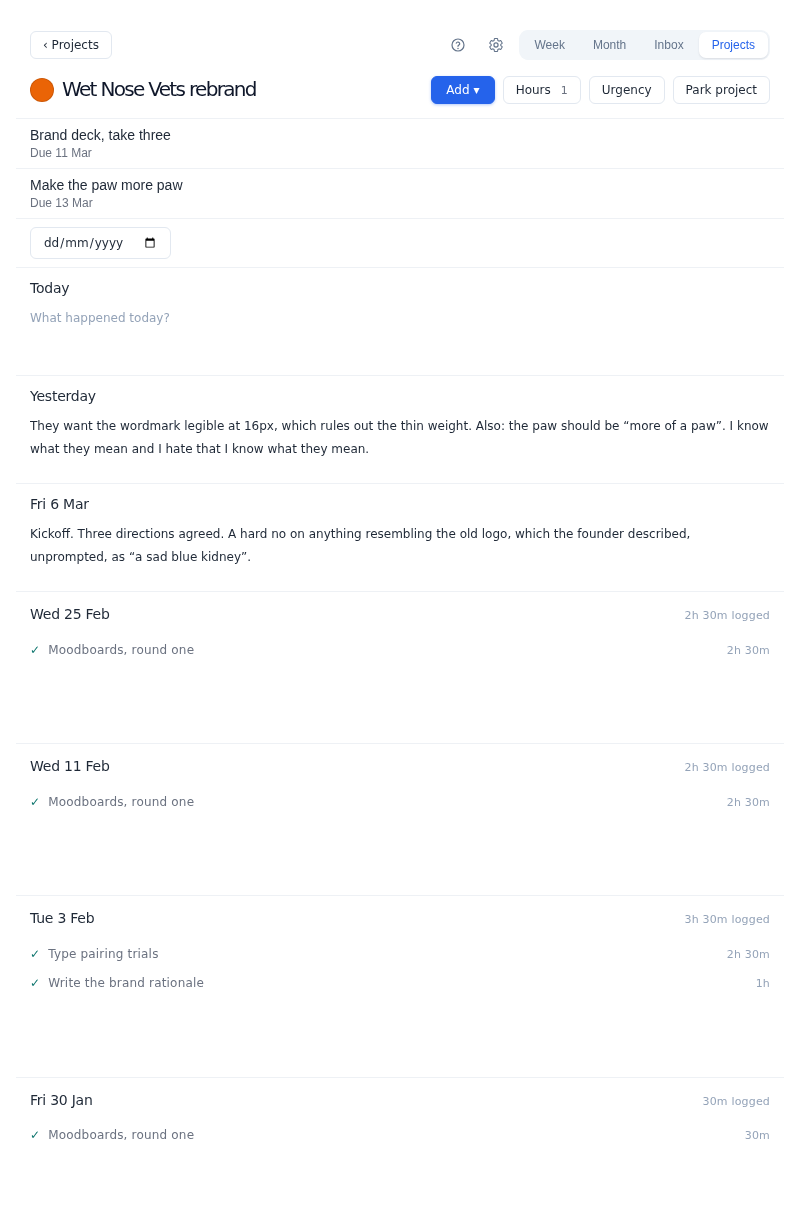
A Project is a grouping of events, tasks and goals that allows you to organise things together.
This gives you:
- Default scheduling hours that automatically apply to all work in the project.
- Press the colour by project toggle to colour the calendar by project.
- A workspace, showing what is outstanding, a running log, and finished work.
- You can move a project to the backlog to temporarily stop it being scheduled. .
Goals
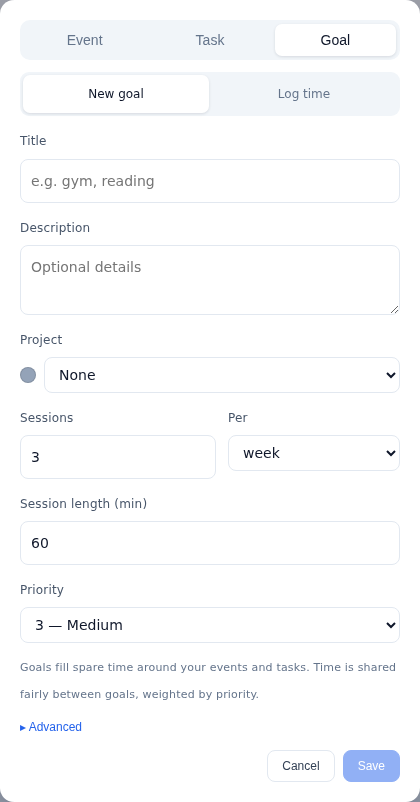
Goals help you allocate time to long-term aspirations. Press + New and select the Goal tab.
You specify a goal as a number of sessions, of some length, in some time period. For example, three 60-minute sessions per week. The Increment engine will then flexibly allocate that time to your goal, around your events and tasks.
Price
Or £48 a year — £4 a month, a third off.
Cancel whenever.
No recurring payment, and all future updates.
Every plan includes every feature, and includes a two-week fully featured free trial.
More from Increment
- Looking back shows analytics: for example, what projects you've been spending time on and how well you're meeting your goals.
- You can share your Increment calendar by creating a subscribable link.
More on the thinking in Time Blocking Doesn’t Work (Until You Automate It), or see how to install Increment as an app.