How to install Increment as an app
Increment works in the browser. Here's how to get started with Increment and install it as a Progressive Web App (PWA) so that you can access it as an application.
Getting started
To start using Increment, click here.
Your license key
After starting your subscription, you get a license key. This enables you to use Increment. You can autofill your license key by clicking the Start here! button.
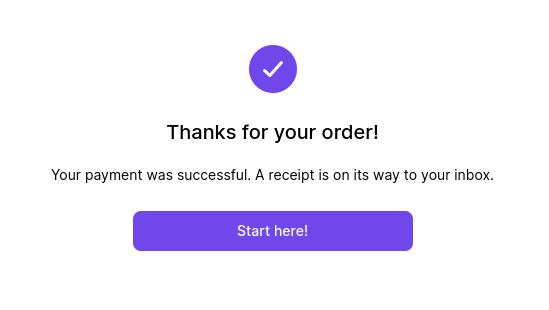
If you missed that, you can access the same link on your email order receipt sent to your inbox.
Your email order receipt also shows your license key. If your license key does not autofill, simply copy it from your email order confirmation and paste it into the license key entry form. You will only need to do this once.
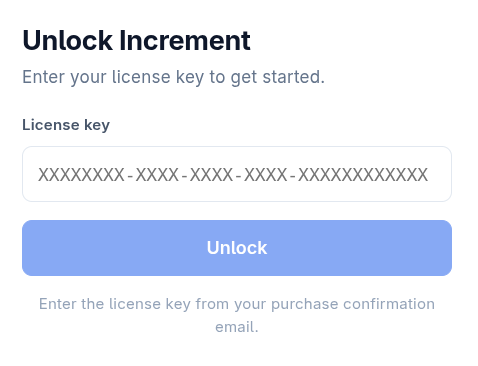
Installing Increment as a Progressive Web App (PWA)
Look for an icon pop up at the top of your browser.

Click this to add Increment to your applications and have it open in its own window.
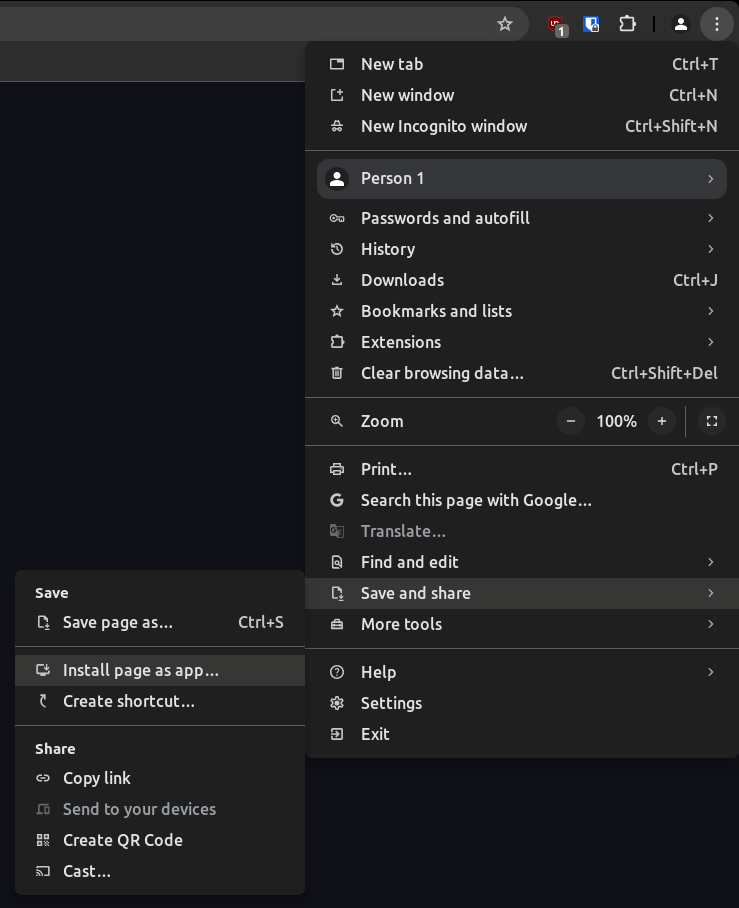
If you don't see that pop-up, then try pressing on the Chrome menu bar (three dots). Go to Save and share (or Cast, save and share) and select Install page as app.
If you are still having trouble installing Increment as an app or are having any other issues getting started, contact us at [email protected] to get it sorted.