How to Move From a To-Do List to a Calendar
A to-do list records what you intend to do. A calendar records what you have time to do. A list will never tell you that you have taken on more than fits, so you can work a full week and still not be able to say at the end of it what finished.
Moving from a to-do list to a calendar closes that gap, because a calendar runs out and a list does not.
Why lists stop holding you accountable
A list has no capacity. Nothing in it stands for the time an item will take, so twenty items and forty hours of work look the same on the page. You can keep adding, and nothing on the page changes to show the total.
Adding costs nothing. No other item moves or shrinks when you add one, so adding does not feel like a commitment. Put the same item on a calendar and it takes an hour something else was going to have, and you have to choose which.
Short items win. With a free half-hour and a flat list, you pick something that fits a half-hour. Do that for a week and the two-hour job is still at the top, untouched, because it never fit the gap you were looking at.
You cannot see what has been carried. Most lists do not show when an item was written, so one you added two weeks ago looks like one you added this morning. Nothing forces the question of whether it is ever going to happen.
Ticking a box is the only feedback you get. It records that something finished. It does not record how long it took, and that is the number you need to plan the next one.
The mindset shift
Three changes in how you think about the work. None of them need software.
A task is not planned until it has a start time. Writing it down is capture. Capture is useful, and it is not planning. Until an item has an hour against it, you have deferred the decision rather than made it.
Deciding when is the work. The list already told you what. The overcommitment, the deep work that never happens, the deadline that arrives with nothing done — each of those is a failure of when, not of what.
A calendar can refuse. Nine hours of work will not fit in a day that already holds five hours of meetings. A calendar shows you that on Monday morning. A list shows you at 6pm on Friday.
“A list will let you carry forty hours of work into a thirty-hour week. A calendar will not.”
What you give up when you move from a to-do list to a calendar
Two costs, and neither is small.
You find out the week does not fit. A list lets you believe it does. The first time you block out everything you were carrying, you will run out of days before you run out of items.
You take on maintenance. A list needs no upkeep when the day changes; a schedule does. A meeting overruns, a task takes twice its estimate, and every block after it is wrong. Repairing that by hand two or three times a day is why people go back to lists. It is also the part worth automating — we wrote about that in Time Blocking Doesn’t Work (Until You Automate It).
You do not have to give up quick capture. Keep the place where items land in a few seconds. It just stops being the plan.
The move, in six steps
Do them in this order. Each one depends on the one before it.
1. Put the immovable things in first
Meetings, appointments, the school run — anything with another person attached. They take fixed hours and everything else has to fit around them, so nothing else can be placed until they are all in.
If they already live in another calendar, bring that calendar in rather than retyping it.
2. Empty the list in one pass
Every task you are carrying, in one place, without sorting as you go. Then make one cut: items with a real deadline, and items without. The second pile is not urgent, by definition. Keep it, and keep it out of the week you are about to build.
Expect more than a week holds. That is the first useful thing this tells you.
3. Give every survivor a duration
This is the step that turns a list into something a calendar can accept, and the one most people skip. An item with no duration cannot be placed, cannot be compared against a gap, and cannot be counted against a week.
Guess. You will guess low — people do, consistently, and knowing it does not fix it. What matters is that a number exists and gets corrected once you know the truth.
4. Decide which hours work may use
Without boundaries, a report can land at 11pm on Sunday. Before anything is placed, state the windows: when you sleep, when the day job may take time, when personal work may.
This is also what keeps the switch from becoming a productivity trap. The point of blocking time is to be finished at a stated hour, not to make every waking hour assignable.
5. Place the work — but not by hand
Putting every item into the gaps between meetings, in deadline order, splitting the long ones, staying inside the hours you just set, takes most of an hour. Then a meeting moves on Tuesday and you do a smaller version of it again.
Doing it by hand is the step that kills the habit. It is also arithmetic, and software does arithmetic better.
6. Close the loop at the end of each day
Mark what finished and record what it took. Two minutes. Without it you never learn your own estimates, and next week’s plan is the same guess with more confidence behind it.
What the first week actually looks like
Not like the plan. That is not a failure — a plan that needed no changes all week was not planning much.
What changes is when you find things out. Work that will not fit before its deadline is visible on Monday instead of on Friday. You can count what rolled over. And the durations you recorded in step six make the second week’s estimates better than the first week’s.
Keeping the list and the calendar as one thing
This usually fails as a migration: abandon the list app, live in the calendar, retype everything. Then every new task needs a slot chosen by hand at the moment you capture it, capture gets slow, and a list reappears somewhere else.
Lists and calendars are not competing tools. A list is where work arrives. A calendar is where it gets committed to. The missing piece is the step between them, and that step is arithmetic.
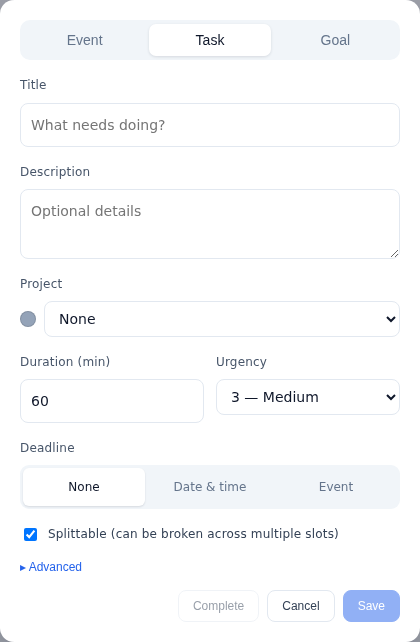
Increment is built as that step. Work goes in as a task with two fields that matter: an estimate of how long it takes, and a deadline — a date and time, another event, or none. You are not asked when to do it.
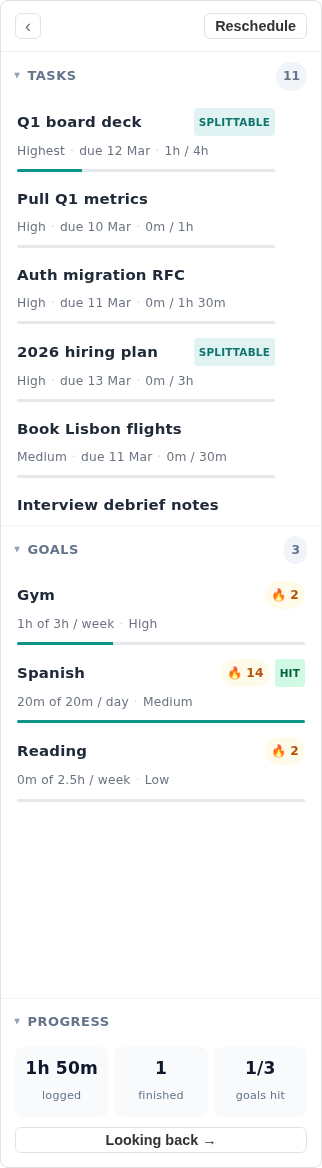
The tasks sit in a sidebar that works like the list you already keep: searchable, one line per task, with when each is due at the end of its row.
Pressing Reschedule is step five, done in one action. Tasks and goals go into the free gaps between your events, in priority order — deadline first, with urgency breaking ties between things due around the same time — and anything too long for a single opening is split across several. Nothing is placed inside hours you marked unschedulable, and nothing is placed in the past.
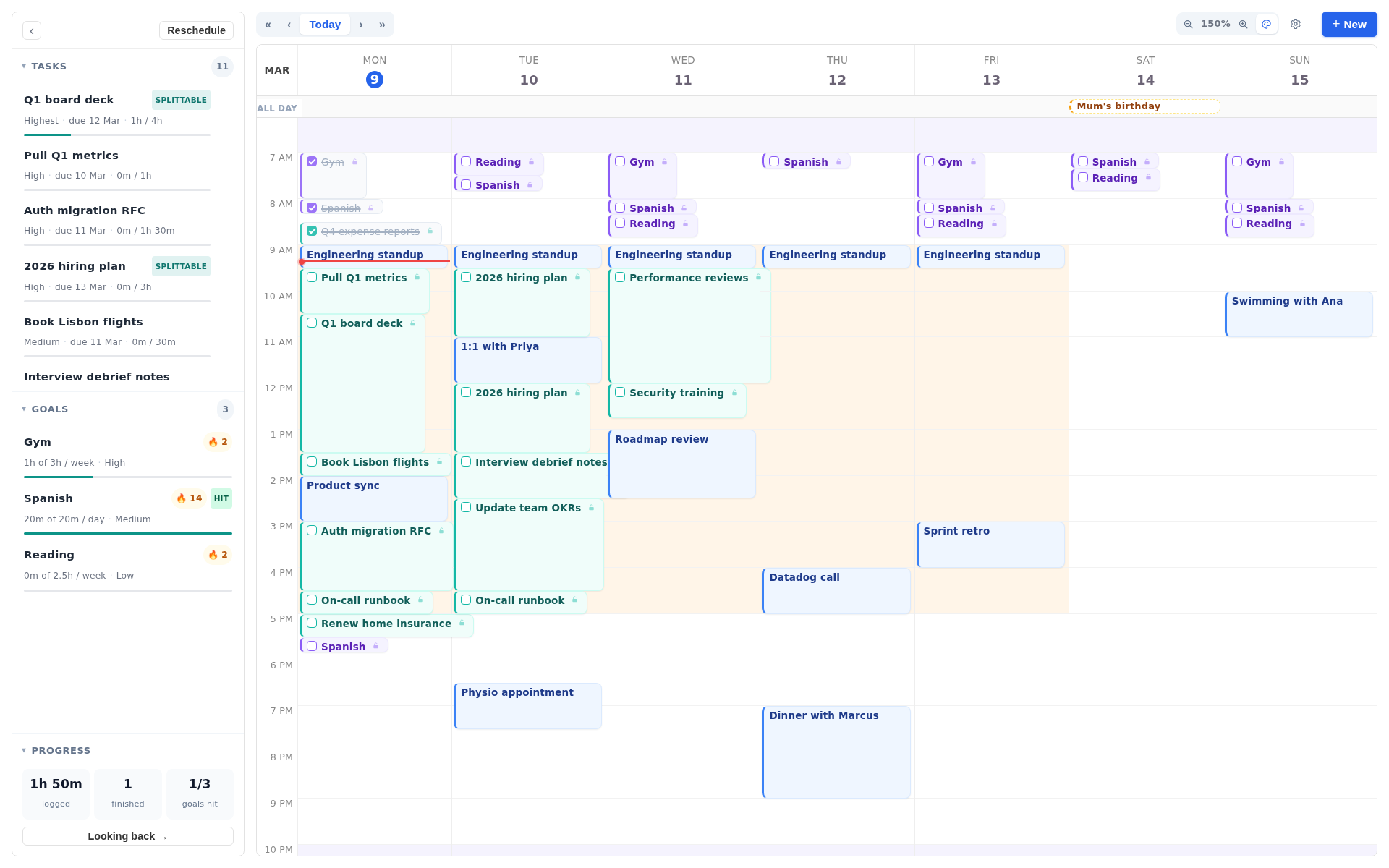
Scheduling happens when you ask. Editing a task, logging time or changing an estimate all leave the week where it is. A plan that rearranged itself on every keystroke would not be one you could hold in your head.
Drag a block and everything after it re-plans around where you dropped it. Anything you pinned stays where it is, and completed blocks are history and never move. That is the maintenance from earlier, done by software.
Two things keep it honest. Work that cannot fit before its deadline is still placed and then flagged: the sidebar says how many tasks will not make it, and the blocks are there to look at and move rather than dropped. And when the time you have logged reaches the estimate, Increment asks whether the task is done — answering “not done” adds more time, which is what gets it back onto the calendar.
Bringing your existing calendar in: connect Outlook, subscribe to any calendar by its link — a Google calendar’s secret address included — or import an .ics file, which needs no account. All three are under Calendars…, at the foot of the sidebar.
Connected calendars are read-only. Increment reads them to know when you are busy and never writes back.
Start with one week
Do not migrate everything. Take the next seven days: fixed commitments in, list emptied, durations guessed, hours set, and the placing done for you. One week is enough to find out whether the work you are carrying fits in the time you have. A list was never going to answer that.
The tutorial walks through the same six steps against the real app, in order, with screenshots.
Add a task with a deadline. Increment finds the time for it around the meetings you can’t move.
Get started with Increment